
Leaving Google Photos after 10 years
— By ttyrex
Leaving Google Photos after nearly a decade wasn’t easy. it took me several tries to finally break free.
To be fair, Google does provide tools to export your data, but after ten years of usage, the high volume and painful details make the process anything but simple. It definitely requires some planning and preparation.
As always, I’m sharing my experience in this journal, hoping it might help others on a similar path. Leaving GAFAM requires solid alternative and solidarity 💪
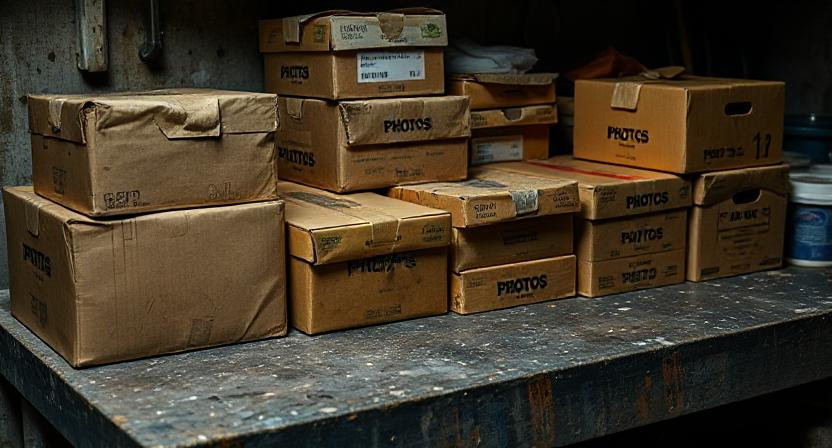
For those reading out of curiosity and wondering about the cost: as of today, Google Photos storage plans are priced at $39.99 + tax per year for 200 GB. If you need more space, the 2 TB plan jumps to $139.99 per year.
Keep in mind that once you’ve filled up your storage, scaling down isn’t easy—especially if you want to keep your entire photo library centralized. In reality, it often turns into a long-term commitment, with recurring fees for as long as you want full access to your memories. Quite possibly, a lifetime subscription 😄
Sure, $3,000 over 20 years doesn’t sound crazy, but when you factor in inflation and the increasing reliance on GAFAM services (therefore USA), it’s fair to ask whether it’s really worth it in the long run.
For something as important as memories, I definitely sugest to rely on a carefully controlled strategy. Also, feeding all those algorithms just to be profiled and targeted with better marketing is completely absurd—if not a total nightmare…
Exporting Your Photo Collection
To access your archive download links, go to your Google Account settings. I won’t give the exact steps, as the interface tends to change often, but you’ll find an option to schedule a data export somewhere in the settings.
Be sure to choose the largest archive size available—this will minimize the number of files you’ll have to download.
After a wait ranging from a few minutes to several hours, you’ll receive a notification with a link to a page containing all your downloadable archives.
Also, keep in mind that the download links expire quickly, so you’ll need to complete the process in a timely manner. If you restart the export, the new set of files won’t match the previous one, meaning you’ll need to delete the old batch and start over from scratch.
Now, here’s the catch: if you’re like me and end up with 50 or more ZIP files, each about 5 GB, the process becomes painfully. There’s no “Download All” button—you’ll have to click each one individually.
The workaround is to use client-side automation: Browser extensions will help automate repetitive actions. You can find several options on the Chrome Web Store. Some are free, while others might prompt you for a tip halfway through the operation. Be sure to read the reviews and details carefully—you don’t want to get stuck in the middle of a big download batch.
Removing Photos from Google Photos
Since I wasn’t ready to delete my entire Google Account, I just wanted to remove my photos—but that turned out to be surprisingly difficult.
There’s no option to wipe everything in one shot. If you explore Google’s settings, you’ll find tools to delete specific services like YouTube or other account data, but Google Photos isn’t there.
So, once again, you’re stuck with the painful approach (deleting photos in batches, manually).
With over 25,000 photos in my library, this was easily the most time-consuming part of the whole process. Just like with downloading, I ended up relying on a client-side browser extension to help with the task.
It mostly worked, but still needed a bit of manual intervention here and there. I spent a few hours deleting photos in batches of 500 to 1000 (I’m still not sure what the actual limit per batch is), but I eventually got through it.
The extension helps by automatically selecting photos and clicking the delete + confirm button for you.
Deleting your photos doesn’t actually remove your galleries (albums)—those stick around. So you’ll also need to go in and manually delete your albums one by one.
Also, keep in mind that if you’ve received photos from friends in shared albums, those items won’t be deleted when you clear your library. As a result, some albums might still contain content and remain shared, even if you’ve removed all your own photos.
What about all the advanced features now?
What I’ve learned from using Google Photos for years is that depending on a tool or service can leave you trapped in a golden cage.
As a result, I’ve completely changed my approach to storing photos. I no longer want to rely on complex tools, and instead, I aim to minimize the layers between viewing an image and saving it to disk. This means avoiding databases, online services, and proprietary storage systems. I’ve chosen to store my photos directly on disk, organized by date. Old-school for the win!
This doesn’t mean giving up on all the fancy features. It just means that, regardless of the system you use to do something—whether it’s sharing photos, recognizing objects, or editing images—your source of truth will always be your disk.
For example, my goal is to build a self-hosted LLM/AI tool with a powerful search engine (object, faces, …), but it will rely on the filesystem. If something breaks, I’m still safe. Similarly, for the public gallery, I plan to automatically generate a static site on demand whenever needed. The same approach applies—this won’t affect my source.
Organize Media (by dates)
The best tool I’ve found for scanning all folders of extracted archives and organizing them by date is Rapid Photo Downloader. This Python-based tool is extremely fast and efficient. You just define your folder structure, and it takes care of the rest. It skips duplicates, generates a task log, and places photos without the expected EXIF date into today’s folder. Honestly, I did not need anything more than that.
I’ll stop here, as the rest focuses more on my current photo editing workflow and how I replaced Google Auto Sync for photos on my cellphone, for example. I plan to take the time to describe that in a separate article.
Have a great day!
^EOF
🤖 Please note that I have used ChatGPT to help with my English in this article. If you come across any words that seem off topic or like a hallucination, please let me know. Thank you.